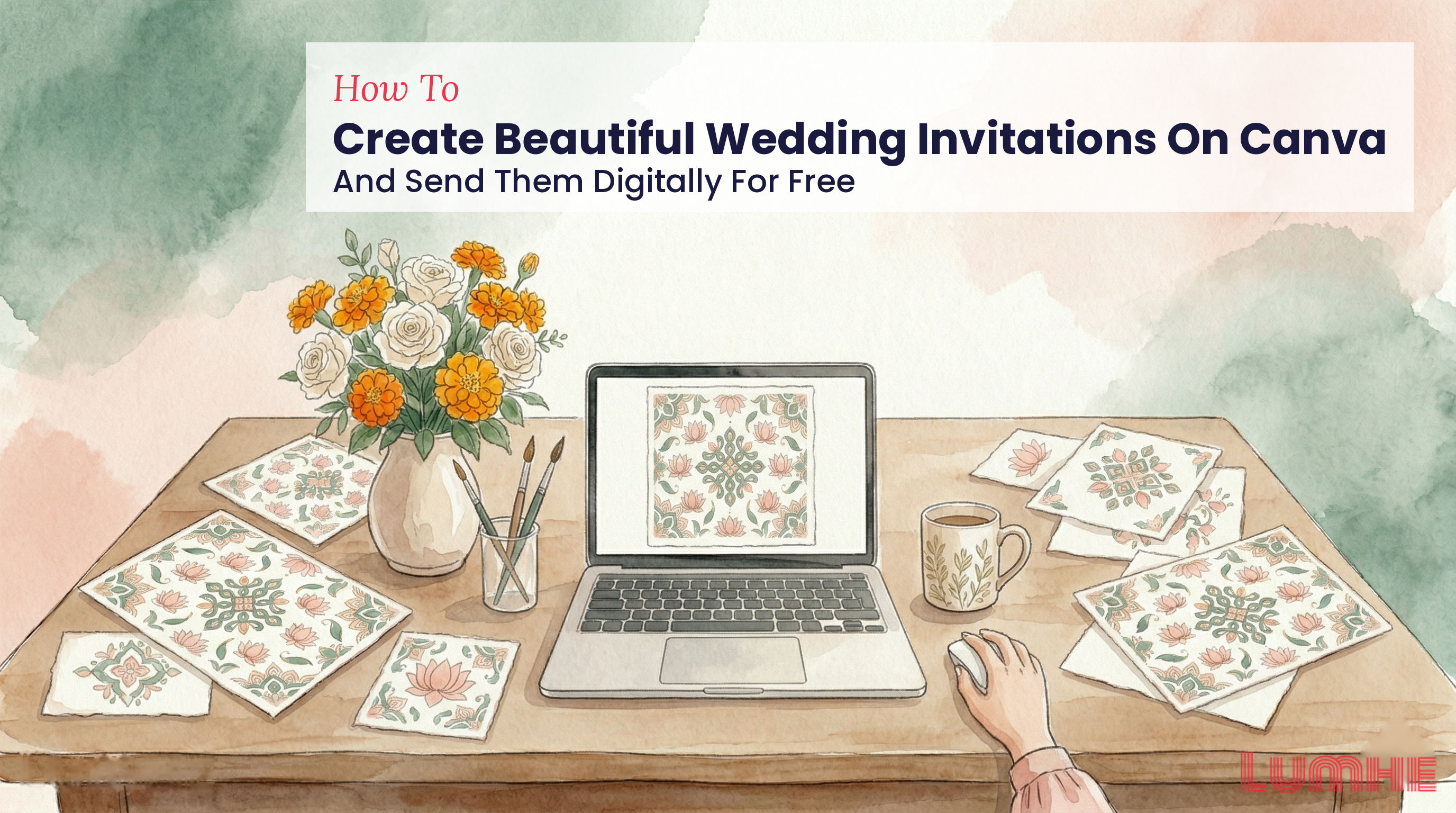
Beyond just looking beautiful, Canva invitations are flexible. You can design once and download as a PDF, image, or even keep it digital-only. Whether you want rustic charm, minimalist elegance, or modern flair, Canva has styles to match every wedding aesthetic.
For more inspiration, explore 15 Best Free Wedding Invitation Templates in 2026.
Step 1: Choose Your Wedding Invitation Template on Canva
Start by logging into Canva (or creating a free account). Click "Create a design" and search for "wedding invitation." You'll see hundreds of options, organized by style.
Browse templates that match your wedding vibe. Are you planning a barn wedding in the countryside? Look for rustic designs with wood textures and wildflower accents. Beach wedding? Search for tropical, nautical, or sunset themes. Modern minimalist ceremony? You'll find clean layouts with elegant typography.
When you find a template you love, click it to open the editor. Canva will show you the design with customizable sections highlighted. Don't worry if it's not perfect yet—you'll adjust everything in the next steps.
Step 2: Customize Colors, Fonts, and Layout to Match Your Wedding Style
Once you've selected a template, personalization begins. Start with the color palette. Click on any color element, and Canva will show you a color wheel. Choose your wedding colors—perhaps blush and gold for an elegant affair, navy and white for a classic look, or sage green and cream for a garden wedding.
Next, update the fonts. Wedding invitations traditionally use one elegant serif font for the main text and a lighter sans-serif for details. Click any text to change it, and Canva's library offers beautiful wedding-appropriate options like Playfair Display, Montserrat, or Cormorant Garamond.
Adjust the layout if needed. Move text boxes, resize images, or remove sections you don't need. If your template has a decorative border that doesn't match your style, delete it and add your own flourishes—perhaps your wedding date in large, elegant numbers, or a simple line drawing.
Step 3: Add Your Wedding Details and Personal Touches
Now for the essential information. Update the template text with your names, wedding date, time, location, and venue. Include your wedding website URL or RSVP details—more on that in the next section.
This is where personalization shines. Add a photo of you and your partner if you'd like. Canva lets you upload your own images and crop them to fit. Consider including a meaningful photo from your engagement shoot, a candid moment that captures your relationship, or even your honeymoon destination if you want to hint at your plans.
Add small personal touches that make the invitation uniquely yours. Maybe a meaningful quote, your initials in a decorative monogram, or small icons that represent your interests—wine glasses if you're wine lovers, mountains if you're outdoor enthusiasts, or books if you both value reading.
Once your design looks perfect, it's time to download. Click "Download" in the top right corner. Canva gives you options: PDF (best for printing), PNG (for emailing), or MP4 (for sharing as a video on social media).
For digital sharing, PNG or PDF works well. PDF maintains formatting across devices and is easy to forward. PNG is perfect if you want to share directly in email or messaging apps.
If you're printing copies, download as PDF and take the file to a local printer or use an online service like Shutterfly or Minted. However, we recommend a hybrid approach: send digital invitations through a platform like Lumhe that's specifically designed for event management, and print a few physical copies for older relatives or for your own keepsake.
Step 5: Send Your Invitations Digitally Through Lumhe
Here's where digital invitations become powerful. Instead of forwarding a PDF or image file, upload your invitation to Lumhe, a platform designed to handle everything your wedding needs—RSVP tracking, guest management, digital gifting, and photo sharing.
Upload your invitation to Lumhe in any format. Then, find your guests by name, phone number, or email address. Lumhe's discovery feature makes it simple to add everyone you want to celebrate with.
When you send your invitation through Lumhe, you'll be able to track RSVPs per event in real time. See who's coming, who needs a reminder, and who has dietary restrictions or plus-one questions. No more chasing people down or manually updating a spreadsheet.
Guests who receive your invitation can RSVP directly within Lumhe, making it frictionless for them and organized for you. They'll see exactly who else is attending (if you choose to make that visible), and they can ask questions or note allergies right in the response.
Step 6: Leverage Lumhe Features for Complete Wedding Management
Once invitations are sent through Lumhe, you unlock powerful features for wedding planning:
Per-Event RSVP Tracking: See responses organized by event. If you're hosting a rehearsal dinner, wedding day brunch, and reception, track each separately.
Digital Lifafa (for USA): Guests can send gifts digitally through Venmo or Zelle, making it easy for those who aren't comfortable with traditional gift registries or who prefer to contribute cash toward your honeymoon or new home.
Moments: Guests can share photos from pre-wedding events—engagement parties, bridal showers, bachelor/bachelorette celebrations. Create a shared album that captures the excitement leading up to your big day.
Celebration Marketplace: If you want to make gift-giving easier, Lumhe's curated gift marketplace offers selections that fit every budget and preference. Share options with guests, and they can choose something you'll genuinely love.
Share Links Anywhere: Beyond Lumhe's invitation, you can share your wedding link on WhatsApp, iMessage, Instagram, Facebook, or email. Digital invitations work across every platform your guests use.
Ten Wording Examples for Your Wedding Invitation
Getting the tone right matters. Here are invitation phrasings for different wedding styles:
1. Classic and Formal: "Together with their families, [Names] request the honor of your presence at their wedding ceremony on [Date] at [Time] in [Location]."
2. Modern and Casual: "We're getting married! Join us for an unforgettable celebration as we say 'I do' on [Date] at [Time] in [Location]."
3. Rustic and Warm: "Two hearts, one love, and a whole lot of fun. We'd love to celebrate with you on [Date] at [Time] at [Venue]."
4. Beach or Destination Wedding: "Barefoot on the beach or dressed in your finest—join us for a celebration under the sun. [Date] at [Time] in [Location]."
5. Garden Wedding Elegance: "Among blooms and beauty, we'll say yes to forever. Join us for our wedding on [Date] at [Time] in [Location]."
6. Simple and Sweet: "It takes two to make a love story, and many more to celebrate it. Join us on [Date] at [Time] in [Location]."
7. Playful and Fun: "Love is our favorite story. Come celebrate the best chapter yet! [Date] at [Time] in [Location]."
8. Black-Tie Formal: "The honor of your presence is requested at the wedding of [Names] on [Date] at [Time] in [Location]."
9. Intimate Gathering: "We're keeping it small and intimate, and we'd be honored to have you there. Join us on [Date] at [Time] in [Location]."
10. Modern Minimalist: "[Names] invite you to celebrate love, laughter, and new beginnings. [Date] • [Time] • [Location]."
Final Thoughts
Creating a wedding invitation on Canva gives you the design freedom of a professional without the professional price tag. You can iterate, customize, and perfect every detail until it feels authentically you. The real magic happens when you pair that beautiful design with a smart distribution strategy—using Lumhe to send your invitation, track RSVPs, manage your guest list, and even coordinate gifts.
Your invitation is the first impression your guests get of your celebration. It should reflect your personality, your wedding style, and your excitement. With Canva's tools and Lumhe's guest management platform, you can create something truly special—and make the entire wedding planning process less stressful.
Start designing your invitation today. Your guests are waiting to celebrate with you.
Ready to Plan Your Wedding?
Related: learn about what should be included in a wedding invitation | explore catholic wedding invitation
Planning your wedding? Upload your invitation to Lumhe in any format, find guests by name, phone, or email, and send directly. Track RSVPs per event, share photos through Moments, let guests send digital gifts through Digital Lifafa, or choose a curated gift from the Celebration Marketplace. You can also share links on WhatsApp, iMessage, or any platform. Explore Lumhe here.